Team and app users
Manage Studio builders and suite end users, send invites or share join links, assign app roles, and inspect effective user permissions.
Grid82 distinguishes Studio builders (team members who configure schemas, permissions, pages, and billing inside an organisation) from App users (end users who sign in to one suite’s Runtime apps).
Studio builders vs App users
| Builders | App users | |
|---|---|---|
| Where managed | Organisation -> Team | Suite -> Users and App -> Users |
| Where they sign in | https://studio.grid82.app | https://{suite}.grid82.app (or suite domain) |
| Roles | Organisation roles (admin, member) | Per-app user roles (Sales Manager, Client, etc.) |
| Billing quota | Counted under Studio builders | Counted once per email across all suites in the organisation |
Inviting and assigning app users
You can onboard people into a suite in three ways:
- Direct email invite (
users.invite): Add a person by email and assign initial roles on specific apps. Pending invitations reserve one app user seat until accepted or revoked. - Suite join links: Enable or share an invite link so colleagues can self-register into the suite with a default onboarding flow.
- Directory management (
members.add/members.update): Grant an existing suite user access to another app in the same suite, update their role list, or suspend access immediately.
If an invited user loses access to their inbox or needs a fresh sign-in link, builders can generate a one-time password link from the user menu (users.passwordLink).
Inspecting effective permissions
Because a user can hold several roles at once, the fastest way to verify what an individual actually sees is inside the app’s Users list. Open the action menu (...) beside any user and select See their permissions.
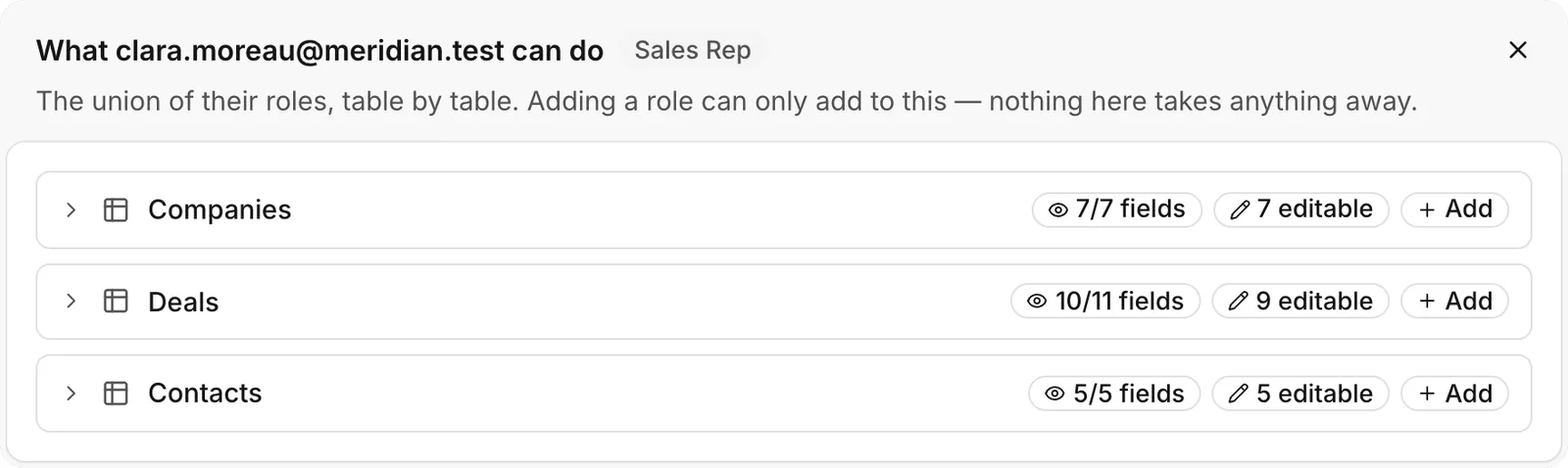
The inspection dialog displays the user’s combined access table by table (which columns are visible, which are editable, and any record filter), computed by the exact same compiler that enforces live requests.