Grid82
grid82.comJoin the waitlist
UseApp shell

Navigating an app

Switch between the Data grid and published Interface views, review workflow approvals, switch apps in your suite, and open the assistant.

When you sign in to a Grid82 suite (https://{suite}.grid82.app/{app} or your company’s custom domain), you land directly inside the app’s Workspace shell. Every element on screen reflects your personal user roles.
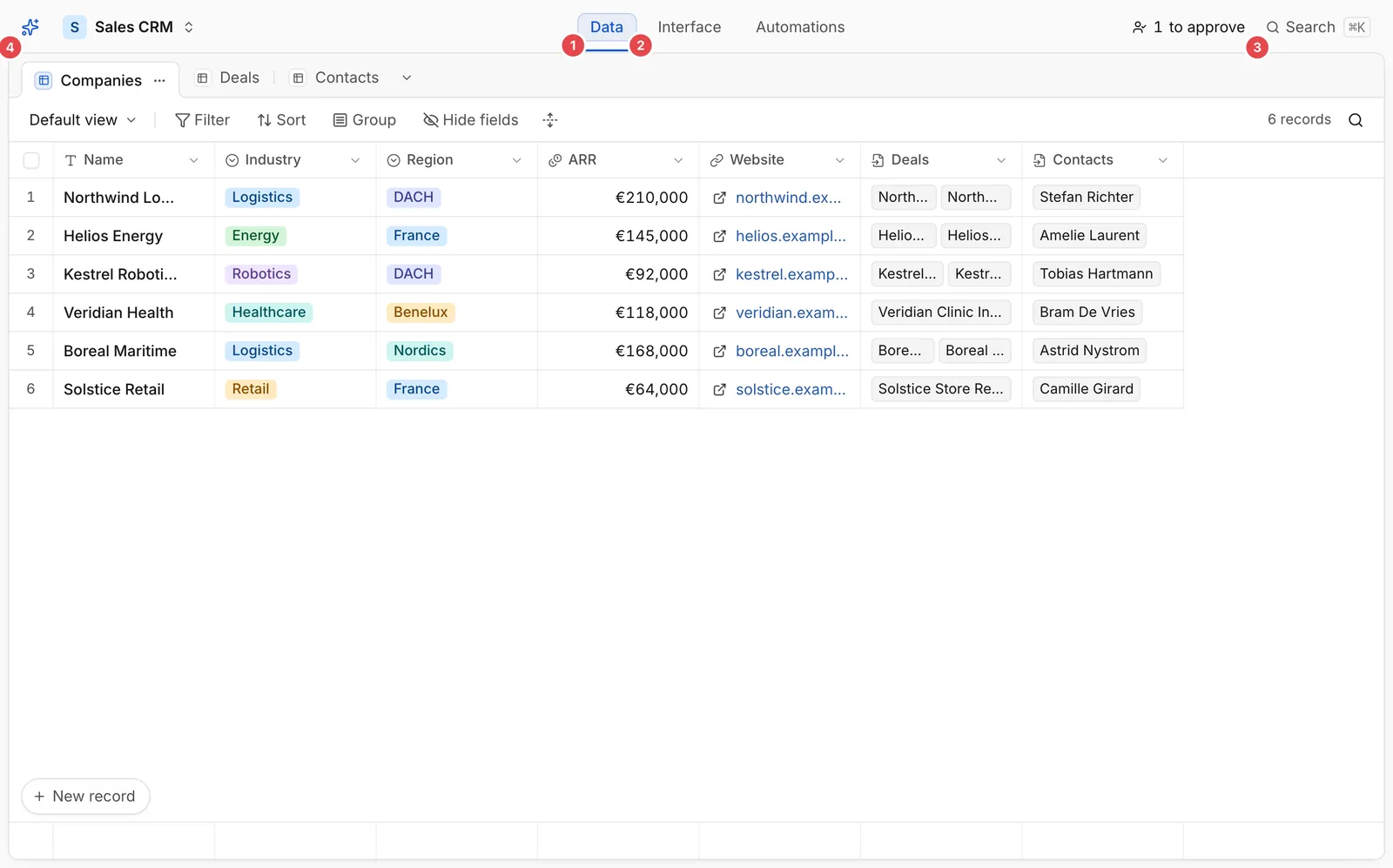
Runtime app shell with numbered badges on Data (1), Interface (2), to approve (3), and Open the assistant (4)

The Runtime app shell showing Data (1), Interface (2), pending approvals (3), and the assistant toggle (4)
  1. Data: Browse your accessible tables in the relational grid, manage personal saved views, and edit records inline.
  2. Interface: Open custom React pages published by your builders (or personal pages you adapted from a Template).
  3. Approvals queue (to approve): Appears whenever a workflow pauses for a decision from one of your roles.
  4. Assistant: Toggle the slide-over AI panel to query records, summarize activity, adjust views, or propose edits.

Switching apps and connections

Click the app name menu in the top-left corner to:

  • Switch between any other apps in the same suite that you have access to without signing in again.
  • Open Connect your agent to link Claude, ChatGPT, Cursor, or VS Code to your suite over OAuth.
  • Open Settings to manage personal API keys under For developers, or review your active sessions and OAuth connections.

Role-filtered experience

Everything in the app shell adapts automatically to your permissions:

  • Tables your roles do not grant are hidden from the table bar.
  • Read-only fields cannot be edited in cells or inside the record drawer.
  • If a builder updates a role, your view refreshes automatically without changing URLs.

Use these docs with your AI tools

An AI agent can read this documentation directly. You do not need an account or an API key. Everything here is public and read-only.

Query these docs via MCP

Recommended

Add this server to Claude, Claude Code, Cursor, Mistral, or any tool that supports MCP. Your agent can then search Grid82 documentation and read it in full, instead of answering from memory.

https://grid82.com/docs/mcp
  • searchFind the passages that answer a question.
  • fetchRead one page in full, as Markdown.
  • list_pagesSee every page in this documentation.

Query these docs over HTTP

The same tools also work as plain web requests. Use this for scripts, or for any tool that does not support MCP. There is one endpoint per tool. Arguments go in the query string, and the answer comes back as JSON.

https://grid82.com/docs/api/docs/search?query=custom+domain

Read the OpenAPI description. It is built from the same definitions as the tools, so it always matches what the endpoints do.

Read these docs as Markdown

Add .md to any page URL to get its Markdown source. You can also send the headerAccept: text/markdown to the page URL itself.

To read the whole documentation in one file, open llms-full.txt. For a short index of every page, open llms.txt.