Tables and records
Design tables, columns, and relational links in the Studio grid, inspect schema impact before destructive changes, and recover from trash.
In the Studio, every app opens directly to its Data workbench. Tables hold your records, and fields define the types, links, and calculations stored on each record.
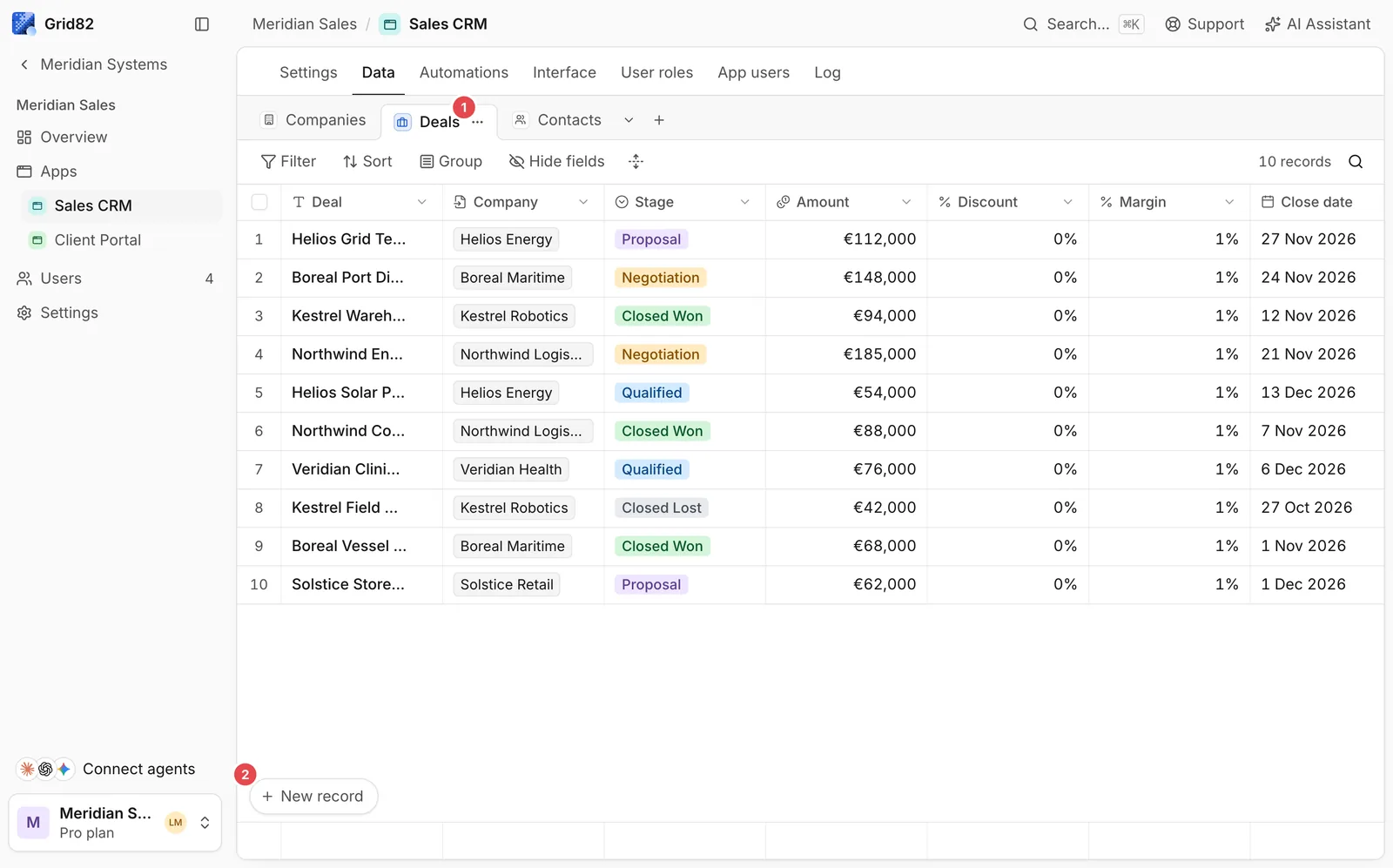
- Table tabs: Switch between tables in the current app (
Deals,Companies,Contacts) or create a new table. - New record: Add records directly in the grid, or import records via the API, CLI, or Studio assistant.
- Add field (
+): Append a typed column, relation, lookup, rollup, or formula.
Managing tables safely
Every table has a permanent ID (tbl_...), a display name, and an optional icon. When designing a multi-table model (for instance Companies, Contacts, and Deals), create related tables together or link them with link fields.
- No shared builder views in Studio. Builders can filter and arrange columns locally while inspecting data in the Studio, while saved personal views live in the Runtime for app users. To create a permanent screen for your team, build an Interface page.
- Primary field. Keep the first column descriptive (such as deal title or company name). Linked record chips across the app and in the API (
[{ id, label }]) display the target record’s primary field automatically.
Schema changes and impact checks
Adding a new table or field is immediate and safe. Before renaming or deleting an existing column, inspect its impact:
- Impact check. Grid82 traces which permission rules, formulas, lookups, rollups, workflows, Interface pages, and user views depend on a table or field (
schema.impactin the Builder API). - Type conversions. Changing a column’s type converts existing cells inside a single transaction; incompatible values are cleared rather than guessed. To keep old values safe while migrating, add a new column first.
- 30-day trash. Deleting a table or field moves it and its data to the app’s trash for 30 days. Restoring from trash (
trash.restore) brings back the original IDs, values, links, and role references.
Bulk imports and scripts
You can seed records directly in the grid, run grid82 records create from the CLI (up to 500 records per batch), use sql.execute for conditional updates (UPDATE ... WHERE), or drop a CSV/XLSX file into the Studio assistant.